![logo-grunt.svg]](https://support.grunt.pro/hubfs/website%202025/logo-grunt.svg)
Eliminate the pain of manual agenda updates and inconsistent formatting. Grunt automates your table of contents, ensuring perfect structure and clarity for every meeting.
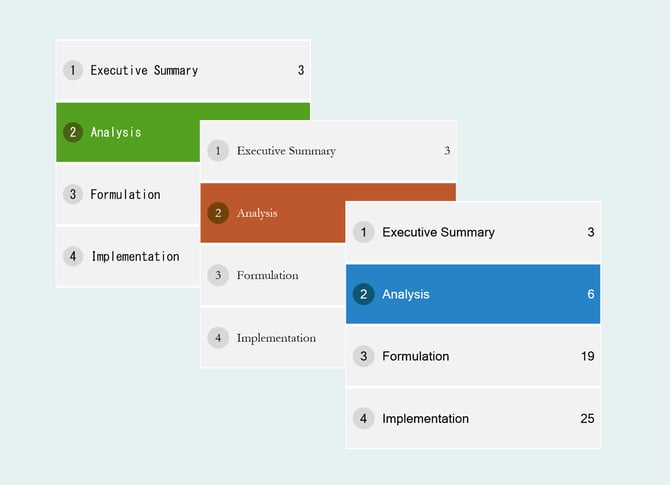
Consistent styling
With Grunt's Agenda object, every change you make to the styling will perpetuate across all slides automatically. Changing fonts, sizes and configuring the agenda will be reflected in all the slides containing the Agenda object.
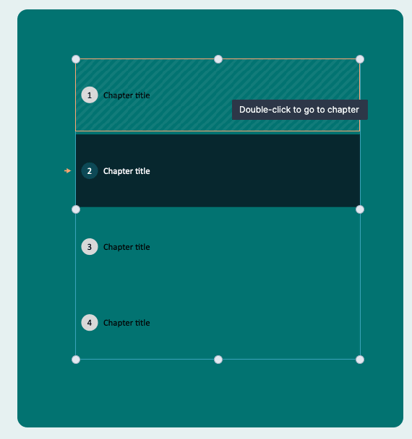
Navigate to chapter
By double-clicking on a chapter in the Agenda, you will be taken directly to the slide indicating the beginning of that particular chapter
Create sections from chapters
When you have the Agenda all set up and in the order you want, you can right click on the agenda-object and create sections from chapters. This will automatically make PowerPoint-sections from the chapters you've already defined.
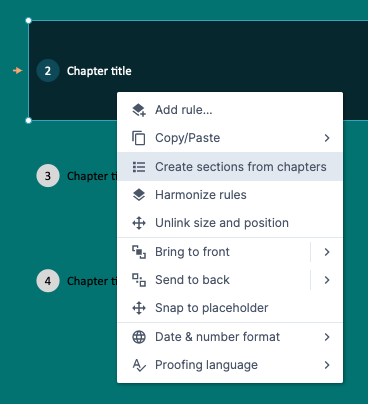
Note: The titles will not automatically update if you make changes to chapter titles after using this functionality, in that case just click "create sections from chapters" again, and the titles will update.
Add sub-chapters
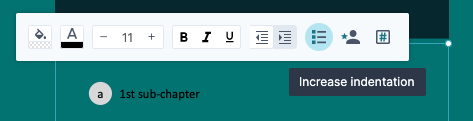
Add a free-text column
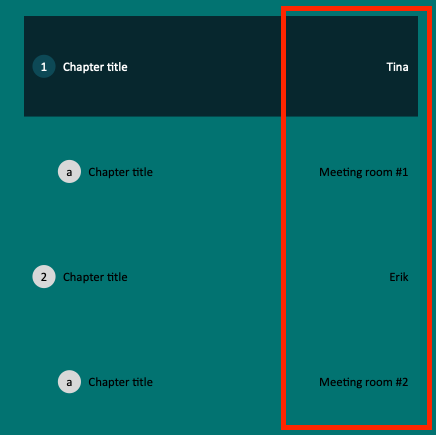
By enabling the "responsible" column for the Agenda, you can freely type in a text-column to show responsible people, or perhaps where the different parts of the agenda takes place.

If you prefer watching a video explaining the Agenda functionality, please watch the video below or head over to our YouTube-page for this and more videos on Grunt functionality.