![logo-grunt.svg]](https://support.grunt.pro/hubfs/website%202025/logo-grunt.svg)
Annotations help make your charts more descriptive and guide viewers toward the most important data points. This guide covers how to add and customize chart annotations in Grunt.
Getting Started
To add an annotation to a chart, click on the chart and navigate to the main chart toolbar on the right. Grunt currently supports four types of chart annotations:
- CAGR (Compounded Annual Growth Rate)
- Value Jump
- Value Line
- Level Difference
Value Jump
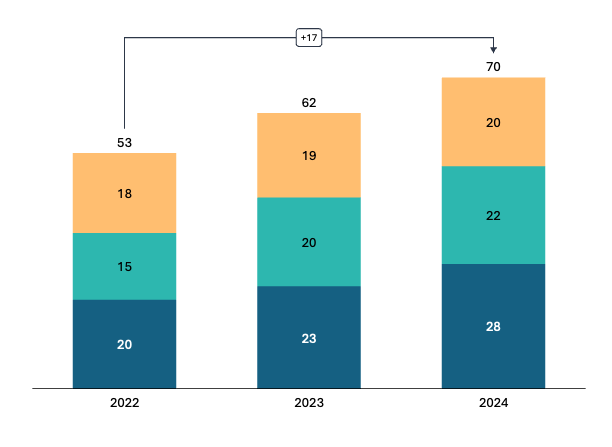
A value jump annotation is used to highlight the change between two data points on your chart. To insert one, click the Value Jump option in the chart toolbar. By default, it will attach from the leftmost column to the rightmost column on your chart.
You can reposition it by clicking and dragging either anchor point to the column of your choice. For example, you might want the jump to start from 2023 rather than the beginning of the chart.
Tip! Double-clicking the arrow will reverse its direction.
Once your value jump is in place, you can click the label to customize it further. This is where you can change the calculation type — for example, displaying the change as a percentage, an absolute value, or both. You can also adjust the style and formatting of the annotation from here.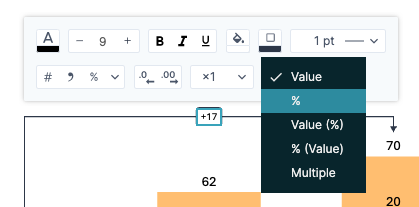
CAGR (Compounded Annual Growth Rate)
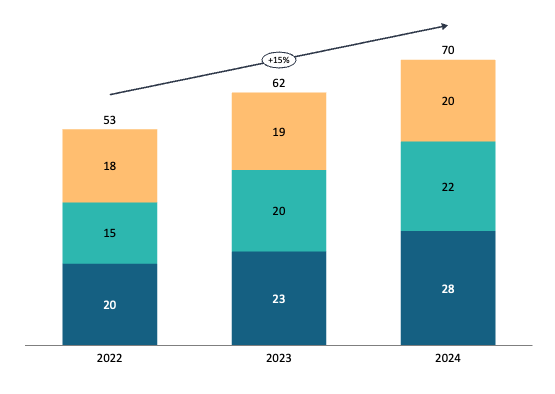
A CAGR annotation calculates and displays the compounded annual growth rate between two points on your chart. Insert it the same way as a value jump, via the chart toolbar.
By default, Grunt calculates the CAGR using an index-based method, meaning it uses the number of columns in your chart to determine the rate. However, if Grunt detects that your chart labels are dates, it will automatically switch to a date-based calculation instead, which is more accurate. You can confirm which method is being used by clicking on the CAGR annotation to see the calculation details.
If Grunt can't detect dates, it will fall back to the index-based calculation. You can check this by hovering over the CAGR annotation, a tooltip will tell you which method is being used.
Value Line
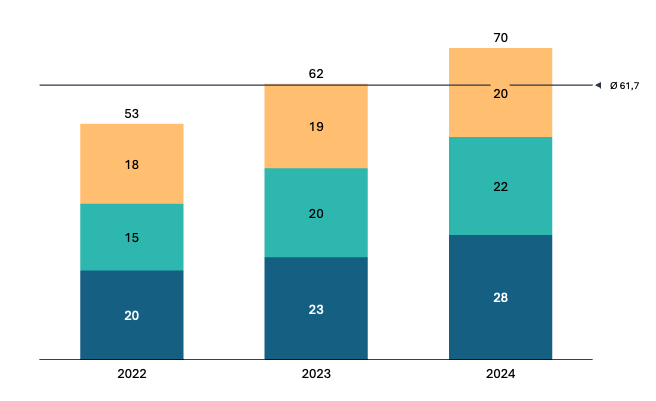
A value line annotation draws a horizontal reference line across your chart at a specific data value. It's typically used to mark a meaningful threshold such as a target, a budget, a break-even point, or an average. Viewers can instantly see how each data point compares against it. This makes it easy to identify which values fall above or below a key benchmark at a glance.
Level Difference
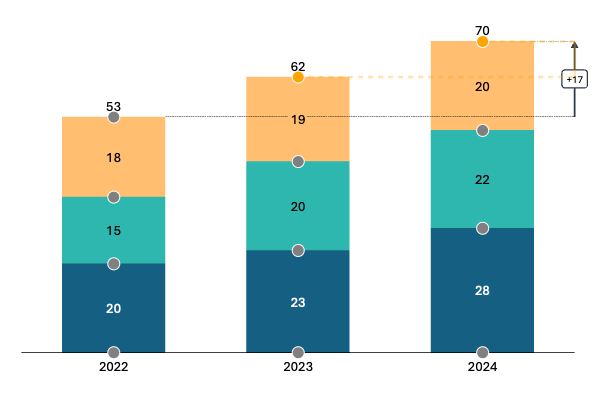
A level difference annotation is used to visually highlight the gap between two specific data points or series on your chart. It's particularly useful when you want to draw attention to how far apart two values are, such as the difference between actual and target performance, or the spread between two competing data series. Unlike a value jump, which focuses on change over time, a level difference emphasizes the size of a gap at a given moment.
You can drag and adjust where you want the level difference to be, and between what points in your chart, as well as choose if you want the difference to be shown as a percentage or with plain numerical difference.
If you prefer a video format, have a look at our tutorial video covering CAGR and Value Jump here.