![logo-grunt.svg]](https://support.grunt.pro/hubfs/website%202025/logo-grunt.svg)
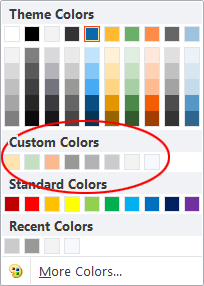 In the theme colors of PowerPoint, you can choose 12 different colors. By doing a few
maneuvers you can add a whole new row of custom colors that exist outside of these 12 custom ones.
A .pptx file is a zip archive of XML files. Its color theme (12 coordinated colors) lives in ppt/theme/theme1.xml. Rather than overwriting that default scheme, you can add a new one so both are available as selectable options in PowerPoint.
Note: This color picker does not show up in Grunt elements. To replicate the custom colors in the Grunt color picker, reach out to your Customer Success Manager at Grunt
Step 1: Open the XML
- Copy your
.pptxfile and rename the copy's extension to.zip. - Extract it and open
ppt/theme/theme1.xmlin a text editor.
Step 2: Add an extra color scheme
Inside theme1.xml, find the closing tag </a:clrScheme> — this ends the default color definitions. Insert the following formula at the end of the document, after the command: <a: extraClrSchemeLst><a:custClrLst><a:custClr name="name of colour"><a:srgbClr val="RGB in Hex"/></a:custClr></a:custClrLst>
Each <a:srgbClr val="HEX"/> is one color slot (no # prefix on the hex code). <a:sysClr> links to a system default instead of a fixed value.
Step 3: Repackage and check
- Save the file, then re-zip the contents of the extracted folder (not the folder itself).
- Rename back to
.pptxand open it in PowerPoint. - Go to Design → Variants → Colors — your new scheme now appears alongside the original as a selectable option.
Troubleshooting
- File won't open → check for a zip/repackaging mistake or invalid XML (unclosed tag, stray character).
- New scheme doesn't appear → confirm
extraClrSchemeLstsits inside<a:themeElements>, right after</a:clrScheme>.