![logo-grunt.svg]](https://support.grunt.pro/hubfs/website%202025/logo-grunt.svg)
The Grunt content library gives your company a shared workspace where you can store and distribute slides, Grunt objects, and images directly inside PowerPoint. This article explains how to set up and manage folders in your company workspace, including how to control who can access and edit your content.
The company workspace is only available with the Content Distribution add-on. If you don't have this, contact your Customer Success Manager.
Who Can Manage the Workspace?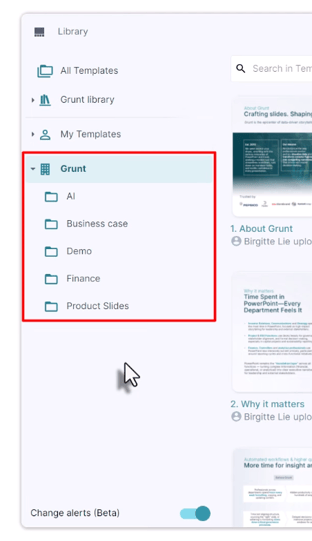
Only designated content managers can create, rename, or delete folders in the company workspace. Content managers are assigned through the client portal at web.grunt.pro.
Getting Started
To access the content library, open the Grunt tab in the PowerPoint ribbon and click the library icon.
Creating and Naming Folders
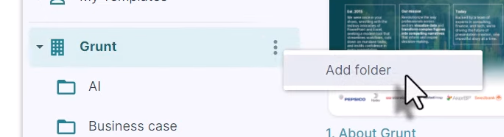
To create a new folder, click the more options menu (⋯) in your company workspace and select Add Folder. To rename a folder, click the more options menu on the folder itself and select Rename.
When naming folders, use clear, descriptive names that make it easy for users to find what they need. Most companies organise their folders by department, use case, or content type.
Managing Folder Access
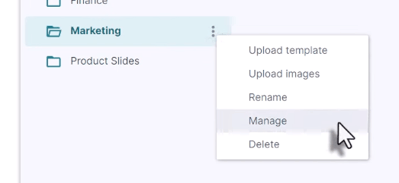
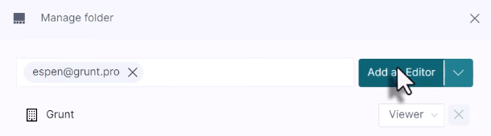
To manage access for a folder, click the more options menu on the folder and select Manage. From here you can assign access to the entire company or to individual users by email.
For most folders, we recommend setting the company-wide access level to Viewer. This means all users, including new employees, can immediately find and use the templates without needing to be added individually by an admin. For users who need to maintain or update the folder content, add them separately as Editor or Admin.
Understanding Access Levels
Folder access in the content library is controlled through three levels:
- No Access — The user won't see the folder at all.
- Viewer — The user can see the folder and use the templates inside it. They can insert templates into their own presentations and edit their copy, but cannot change or delete the original template in the folder.
- Editor — Includes all Viewer rights, plus the ability to edit or delete templates stored in the folder.
- Admin — Includes all Editor rights, plus the ability to manage access to that folder.
| Role | See folder | Use templates | Edit templates | Manage access |
| None | – | – | – | – |
| Viewer | ✓ | ✓ | – | – |
| Editor | ✓ | ✓ | ✓ | – |
| Admin | ✓ | ✓ | ✓ | ✓ |
Editing and Deleting Templates
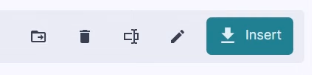
To edit, delete, or rename a template within a folder, select the template and choose the relevant option from the folder menu.
Visit the Grunt Academy to explore more tutorials and guides.