![logo-grunt.svg]](https://support.grunt.pro/hubfs/website%202025/logo-grunt.svg)
Grunt’s data editor lets you work with spreadsheet-style formulas and functions directly inside Grunt. If you are used to Excel, many of the same habits apply: you can start a formula with =, use functions such as SUM, autocomplete formulas, fill formulas down, lock cell references, and format calculated values.
This article explains the basics of using formulas in the data editor.
Opening the data editor
You can open the data editor from the edge menu on the right side of PowerPoint. 
You can also open the data editor by double-clicking the chart directly.
Creating your first formula
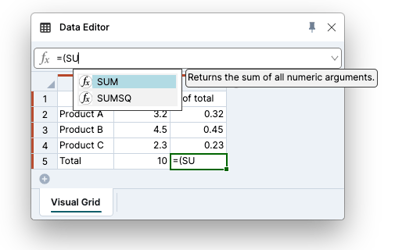
-
Click into the cell where you want the result
-
Type
= - Start typing the function or formula you want to use
- Press
Tabto autocomplete a function - Select the cells you want to use in the formula
- Press
Enter
For example, to calculate a total, you can start typing =su, press Tab to autocomplete SUM, select the cells you want to add together, and press Enter.
Grunt calculates the result directly in the data editor.
Use formulas to calculate shares or percentages
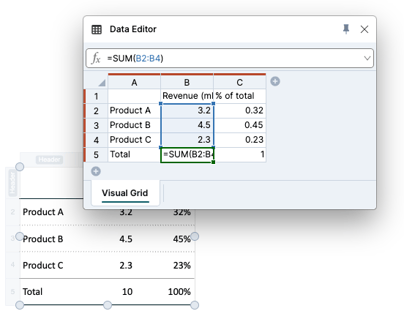
You can also use formulas to compare values.
For example, if you have revenue by product and a total revenue cell, you can calculate each product’s share of the total by dividing the product revenue by the total.
A formula might work like this:
Product revenue / Total revenue
When you fill the formula down to other rows, Grunt adjusts the row references automatically.
To prevent the reference from moving when filling the formula down: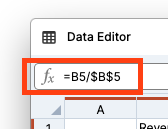
- Click into the formula at the top of the Data Editor
- Press
F4 - Select the reference you want to keep fixed
The dollar signs mean that the reference to the total stays fixed when you copy or fill the formula to other row.
Autofill formulas and patterns
Grunt supports autofill in the Data Editor. You can use autofill for formulas, but also for simple patterns such as: Numbers, Dates, Weekdays
This works similarly to what you may be used to from Excel.
Format calculated values
Formula results may be correct even if they are not displayed in the format you want.
For example, a share of total revenue may first appear as a decimal, such as 0.25
To display the value as a percentage:
- Select the cells you want to format.
- Add a Number Format rule to the cells by clicking the + button on the right side of PowerPoint
- Click the plus button next to Magnitude.
- Choose Percentages.
Why are there two tabs in the Data Editor?
When a visual grid is connected to Excel, the data editor shows two tabs: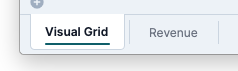
This makes it easier to see what came from Excel and what has been changed in Grunt.
Overrides in the visual grid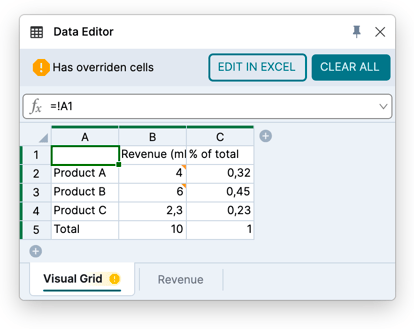
If you change a value directly in the visual grid, that cell becomes an override. The Visual Grid-tab shows the changed value. The Excel data tab still shows the original value from Excel.
Grunt makes overridden cells clear, so you can spot when a value in the visual grid no longer matches the Excel source data.
You can remove an override if you want to return the cell to the original value from Excel by right clicking, or clicking "Clear all".
Key things to remember
For brand-new users, the most important formula habits are:
- Start formulas with
= - Use
Tabto autocomplete functions - Use
F4to lock references - Use autofill to copy formulas down
- Use number formatting to control how results are displayed
These tools let you calculate and adjust values directly in Grunt while keeping a clear view of what comes from Excel and what has been changed in Grunt.
Check out the video on formulas in the Data Editor here, and get in touch with us at support@grunt.pro if you have any questions.