![logo-grunt.svg]](https://support.grunt.pro/hubfs/website%202025/logo-grunt.svg)
Grunt AI for PowerPoint is a chat-driven feature built into the Grunt ribbon that lets you create and edit charts, insert and modify textboxes, and resize objects using plain-language prompts.
Instead of manually configuring controls, you describe what you want and review a preview before applying any changes.
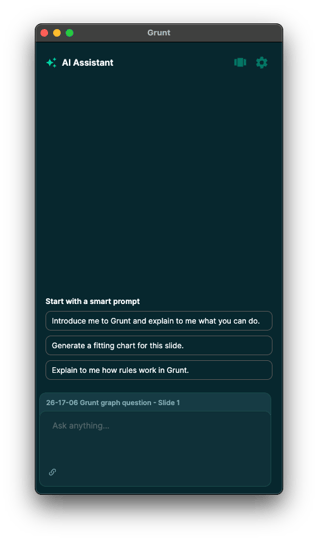
What can I do with Grunt AI?
- Make several charts from the same data source
- Generate charts from pasted data, uploaded files, or a description of what you need
- Generate and make changes to Visual Grids
- Make bulk edits across the entire presentation
- Insert and edit text-boxes
- Resize objects
How to make good use of Grunt AI?
-
AI is good at following exact instructions. It will usually try to do as much as possible. Being specific makes it easier to get desired results.
- Make sure to do the right selection when asking the AI to perform a task. Mention specific ranges, paste a table or CSV text directly into the chat, upload a file or paste from clipboard.
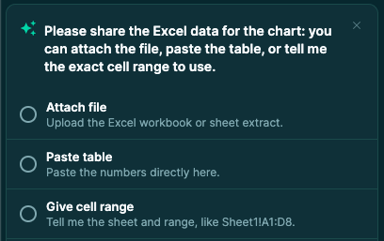
Grunt works very well with Excel-connected workbooks and sheets.
Simply ask the AI to base the chart you want to make on an Excel file, and you will be prompted to upload the file.
Prompts to try out first:
"Create a column chart of sales by product for last quarter"— then paste a table or upload a file."Insert a textbox on slide 2 with title 'Market Summary', 16pt Semibold.""Resize the selected chart to 10cm x 6cm."
You can be as specific or vague as you'd like. Grunt AI will ask you questions to clarify if it needs more context for your prompt.
Creating Charts
Grunt AI can generate charts from pasted data, uploaded files, or a description of what you need.
- Paste tabular data into the chat, or use the file upload controls to open a CSV or Excel workbook.
- Describe the chart you want — include column names, chart type, and any styling preferences.
- Review the preview and click Accept to insert.
Example prompts:
"Create a line chart showing Date vs Revenue. Smooth the line and add a 3-month moving average.""Create a stacked bar chart of Sales by Product and Region; show percent contribution per region.""Use Sales_Q1.xlsx and create a grouped bar chart for Region vs Sales."
You can reference hex colors; "Change colors to #0A6ED1 (primary) and #F5A623 (accent)." and use relative instructions; "Make axis labels larger" or "Remove gridlines."
You can also specify units for sizing: cm, in or px.
To modify an existing chart, select it on the slide first, then describe the changes:
"Update the selected chart: show values as percentages, use blue gradient, rotate x-axis labels 90°."
Generating Visual Grids
Ask Grunt AI to generate or make changes to your existing Visual Grid without having to manually apply rules and formatting. Visual Grids based on Excel-files will maintain the connection to Excel-files.
-
"Create a Visual Grid from this Excel Range"
-
"Improve readability in this Visual Grid
by adding alternating row shading and border "
Gantt with Grunt AI
Gantt in Grunt AI helps you create clear, presentation-ready project timelines from task names, dates, phases, swimlanes, and milestones. You can describe the schedule in natural language or provide structured data, then ask Grunt to create, organize, simplify, or update the Gantt as project plans change.
-
"Create a Gantt chart for a product launch with phases for
discovery, design, development, testing, and launch.

Group tasks by phase and show milestones for design approval
and launch day."
Inserting & Editing Textboxes
Grunt AI supports inserting and modifying native PowerPoint textboxes via chat.
To insert a new textbox:
"Insert a textbox on slide 3 with heading 'Q2 Outlook' and body 'Revenue expected to grow 8% YoY'; heading 20pt bold, body 12pt."
To modify an existing textbox:
- Select the textbox on the slide.
- Describe the change in chat:
"Update the selected textbox: change text to 'Q2 Outlook — Revised' and set color to #0A6ED1."
The preview will show the result before you apply it.
Resizing Objects
Select the object, then type a resize prompt:"Resize the selected chart to 12cm width and 7cm height.""Make the selected textbox 50% wider."
The preview will update to reflect the resize before you accept.
To modify an existing object, you must select it on the slide first. Without a selection, Grunt AI will create a new object on the active slide instead.
Importing Data
Grunt AI accepts data in several ways:
- Paste directly — paste a table or CSV text into the chat input.
- Upload a file — use "Open Excel workbooks" or "Browse" to select a .CSV or Excel file.
- Clipboard import — paste from clipboard.
Best practices for clean results:
- Use tidy data — one record per row, column headers in the first row.
- Use ISO date formats (YYYY-MM-DD) for consistent parsing.
- For large datasets, Grunt AI may prompt you to aggregate or sample the data before visualizing.
❗ Known Limitations
- Charts and textboxes only in V1. Additional object types (Visual Grid, Gantt) are planned for future releases.
- One session at a time. Starting a new session via Chat+ clears the current conversation history.
- Large datasets may be sampled or aggregated automatically before visualization.
- Results are best-effort — complex prompts or unusual chart types may require iteration.