![logo-grunt.svg]](https://support.grunt.pro/hubfs/website%202025/logo-grunt.svg)
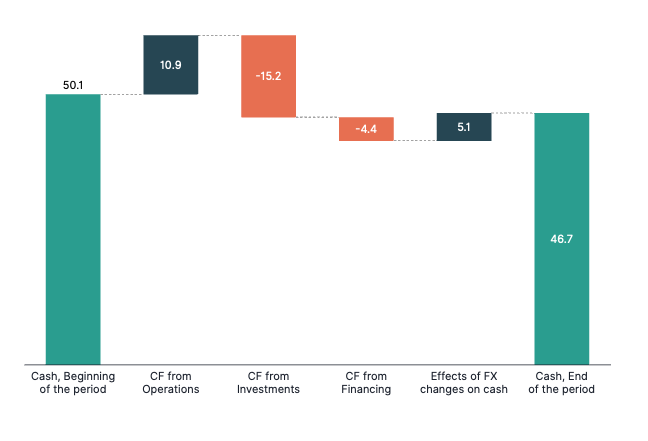
Waterfall charts are a powerful way to visualize how an initial value. Revenue or cash flow, changes through a series of positive and negative steps. They make it easy to see exactly what drives a change from start to finish, whether you're breaking down costs, explaining budget shifts, or highlighting key subtotals.
This article walks you through everything you need to know to build and customize waterfall charts in Grunt.
Getting Started
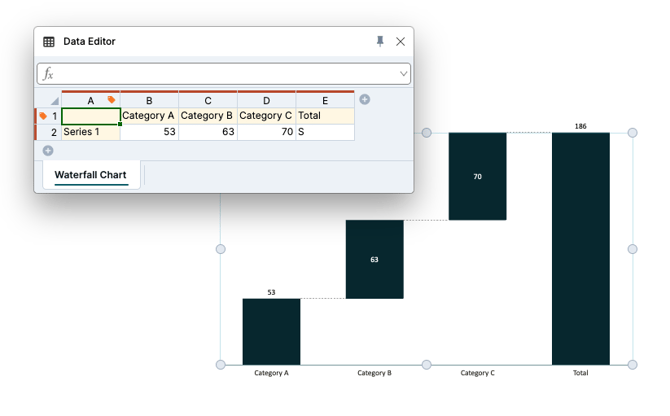
To insert a waterfall chart, open the Grunt ribbon and select the waterfall chart option. Once inserted, you can open the data editor at any time by double-clicking the chart.
Tip!
When entering data, you can use the letter S to calculate totals automatically.
Capital S summarizes across all series – use this when you want a grand total column that adds up everything.
Lowercase s summarizes across a single series – useful when you have a stacked waterfall and need per-series subtotals.Making a Build-Down Waterfall
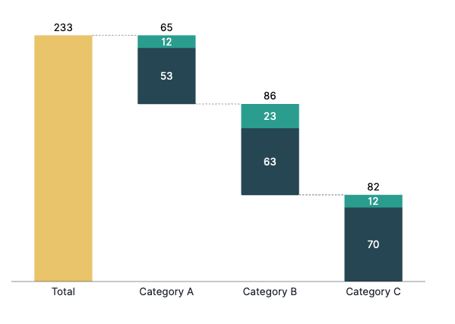
A build-down waterfall is ideal for showing how deductions reduce a starting value (e.g., gross revenue being reduced by costs).
To create one, start with a column representing your total or starting value (use a capital S as mentioned above), then add subsequent columns for each deduction or negative step. Grunt will automatically visualize each step as a downward movement from the previous value.
Creating a Stacked Waterfall
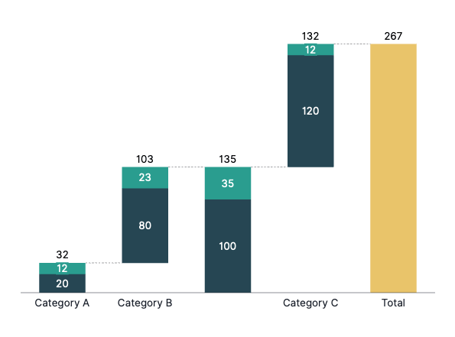
Stacked waterfalls allow you to break down each step into multiple components, giving your audience a more granular view of what makes up each change. To create one, add multiple series in the data editor and use lowercase s on the total columns so that each series is summed individually.
Working with Connectors
Connectors are the lines between columns in your waterfall chart. The connectors visualize how progression is calculated and communicated. Here are the key scenarios where you'll want to adjust them:
Waterfall from Excel Data
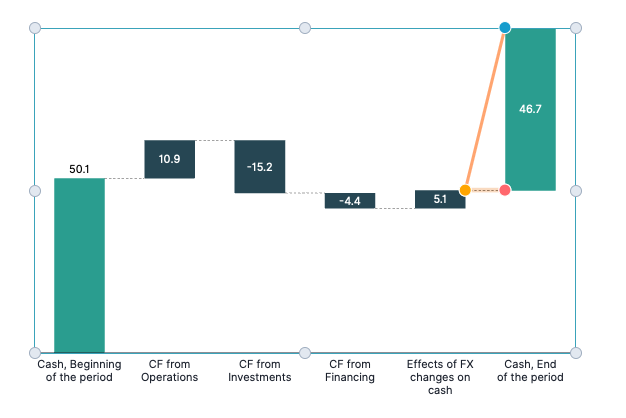
If you've imported data from Excel where totals are already pre-calculated, Grunt may not automatically recognize which column is the final total. To fix this, click the connector leading to the final column and drag the anchor point from the bottom of the column to the top. This tells Grunt to treat that column as a total rather than a continuation of the waterfall flow.
Disconnected Reference Column
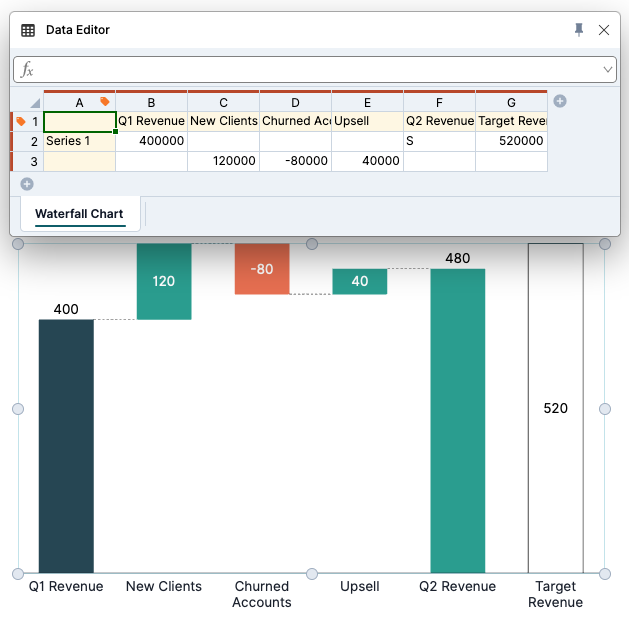
You can add a standalone reference column (e.g., a budget target) alongside your waterfall for easy comparison. Enter the reference data in the data editor, then click the connector attached to that column and press Delete. The column will now float independently, letting viewers compare actuals against a benchmark without affecting the waterfall calculation.
Floating Sum (Subtotal)
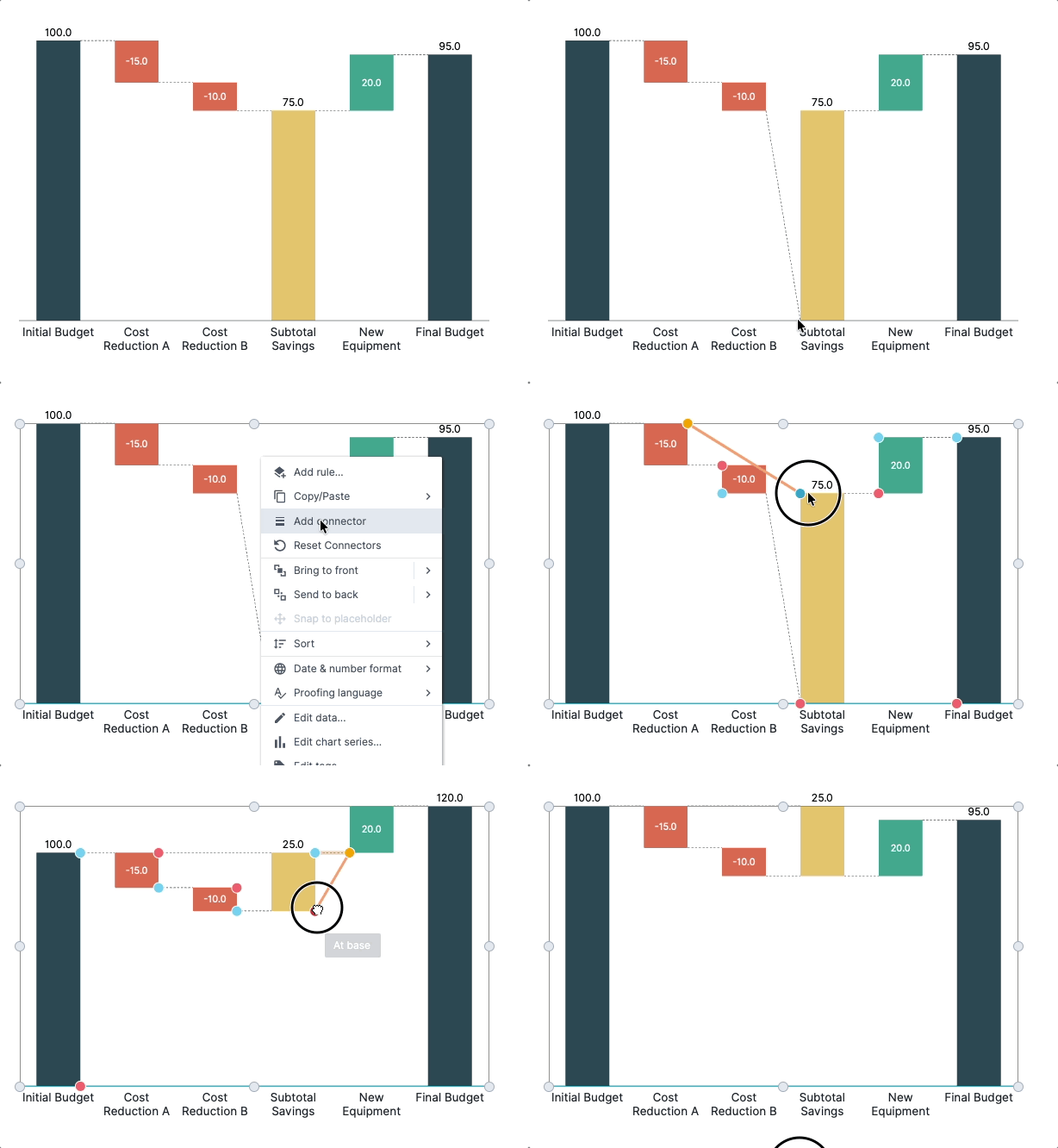
A floating sum is useful for highlighting an important subtotal mid-chart — for example, showing the combined savings from two cost reductions.
To create one, move existing connectors by clicking and dragging their anchor points, then right-click the chart and select Add Connector to add a new one. Finally, make sure the connector at the base of the subtotal column is positioned correctly so the subtotal isn't included in the final budget calculation.
Resetting Connectors
Right-click the chart and select Reset Connectors from the menu to restore all connectors to their default positions at any time.
For a video version of this article, check out the video below or head to grunt.pro/academy.