![logo-grunt.svg]](https://support.grunt.pro/hubfs/website%202025/logo-grunt.svg)
Grunt AI requires an active Grunt AI license. Users without the access cannot start sessions or insert AI-generated content. Get in touch with us at cs@grunt.pro to get started!
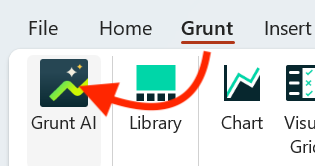 The feature is accessed via the Grunt AI button in the Grunt ribbon (also available from the Home ribbon). Clicking it opens a chat on the right side of the screen.
You can also find it in the Home-tab, on the right-hand side.

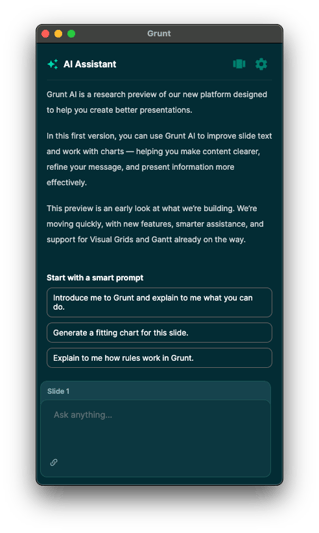
Getting Started
-
The chat taskpane opens on the right. The header above the typing field shows the active slide and selected object (if any).
-
If nothing is selected, new content will be placed on the active slide.
-
Type a prompt or paste data into the chat input to get started.
-
Review the preview, then click Accept to apply or Skip to dismiss.
I can't see the Grunt AI button
If you do not have access to the Grunt AI-button, you might either lack access (contact us at cs@grunt.pro) or Grunt might not be completely updated.
Make sure Grunt is updated to version 2026.2 Revision 9 or later (download here)
Settings and usage limit
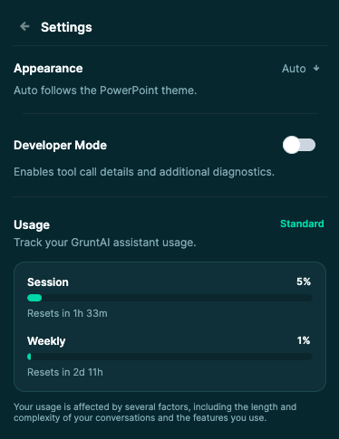
By clicking on the Settings icon (⚙) in the top right, you will get access to configuring dark/light mode, enable Developer mode for troubleshooting and track your Grunt AI usage.
There is a daily and weekly session limit which will start counting once you make use of Grunt AI.
 If you run out of usage, Grunt AI will stop listening to prompts, and you will be notified to wait until the next reset window.
You can upgrade your plan to Premium to get more tokens for usage. Get in touch at cs@grunt.pro to discuss payment plans.
Sessions
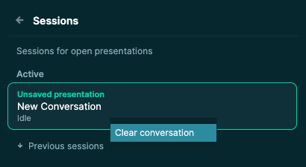
To start a new session, click the sessions-button in the top right ( ) and right-click the current conversation -> "Clear conversation".
If you have any issues using Grunt AI, please check out our knowledge base article on using Grunt AI here, or get in touch with us at support@grunt.pro.